Introduction
In the lesson Input and Output we will discuss some methods for entering data via the keyboard and to display data on the screen.
Input
The Scanner Class
The Scanner class is a simple way to accept input from the keyboard. The Scanner class is part of the java.util package and must be imported before it can be used:
import java.util.Scanner;
An object named myKeyboard from the Scanner class can be created as follows:
Scanner myKeyboard = new Scanner(System.in);
System.in refers to the standard input stream (keyboard). System.out refers to the standard output stream (display). To create an object of the class Scanner to enter data from the keyboard, the argument (System.in) must be passed to a constructor of the class Scanner.
The methods nextByte(), nextShort(), nextInt(), nextLong(), nextFloat(), nextDouble() can be used to input numeric data into the program. The numbers can be separated either by one or more blanks between the elements or by entering the data elements each on a new line. The method next() can be used to enter String data into the program.
//ScannerExample
//Carlos De Backer
import java.util.Scanner;
public class ScannerExample{
   public static void main (String[] args){
      int price;
      double taxRate;
      String productName;
      Scanner myKeyboard = new Scanner(System.in);
      System.out.println("Enter product name: ");
      productName = myKeyboard.next();
      System.out.println("Enter price: ");
      price = myKeyboard.nextInt();
      System.out.println("Enter tax rate: ");
      taxRate = myKeyboard.nextDouble();
      System.out.println("Product: "+productName + " Price: "+ price + " Tax rate " + taxRate);
   }
}
Enter product name:
bread
Enter price:
3
Enter tax rate:
6.0
Product: bread Price: 3 Tax rate 6.0
JOptionPane.showInputDialog()
JOptionPane is one of the many classes in the swing package. The swing package can be used to define graphical user interfaces (GUIs) to create windows, buttons, menus, lists, etc.
The following statement must be used to import the class JOptionPane:
import javax.swing.JOptionPane;
The package swing is considered to be an extension package. That’s why we should use javax instead of java in the import statement.
The method showInputDialog() can be used to enter data:
JOptionPane.showInputDialog(parentComponent, message, title, messageType);
The method showInputDialog() has four arguments:
- parentComponent: the parent of this message window. Since we don’t have any other window objects this argument can stay empty (null);
- message: the message (String) to be placed in the window;
- title: the title (String) given to the window;
- messageType: the style of the window. This constant defines the icons on the window. The following constants can be used:
- JOptionPane.ERROR_MESSAGE
- JOptionPane.INFORMATION_MESSAGE
- JOptionPane.QUESTION_MESSAGE
- JOptionPane.WARNING_MESSAGE
- JOptionPane.PLAIN_MESSAGE
The method always returns String data. When you want to do further calculations then the String result has to be converted with the methods Integer.parseInt(), Long.parseLong(), Float.parseFloat(), Double.parseDouble(), etc. This is illustrated in the following example:
//ShowInputDialogExample
//Carlos De Backer
import javax.swing.JOptionPane;
public class ShowInputDialogExample{
   public static void main(String[] args){
      int price;
      double taxRate;
      String productName;
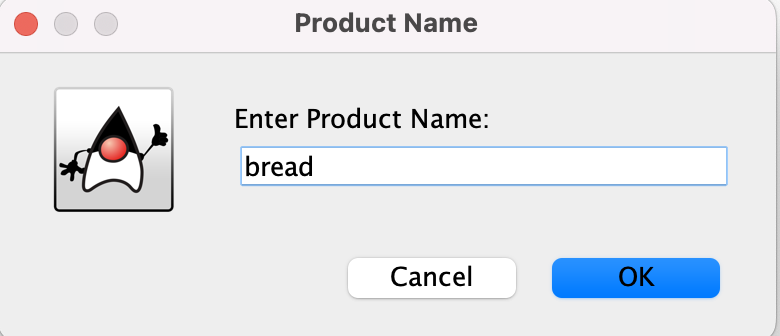
      productName=JOptionPane.showInputDialog(null,"Enter Product Name: ","Product Name",  JOptionPane.QUESTION_MESSAGE);
      price=Integer.parseInt(JOptionPane.showInputDialog(null,"Enter Price: ","Price", JOptionPane.QUESTION_MESSAGE));
      taxRate=Double.parseDouble(JOptionPane.showInputDialog(null,"Enter Tax Rate: ","Tax Rate", JOptionPane.QUESTION_MESSAGE));

      System.out.println("Product name: "+productName+" Price: "+price+" Tax rate: "+taxRate);
   }
}
Product name: bread Price: 3 Tax rate: 6.0
The method showInputDialog() shows the following input window on the screen:
Output
System.out.println()
The statement System.out.println() has already been used several times in this tutorial. The statement System.out.println() prints one line and jumps to the next line. The statement System.out.print() prints the text and stays on the same line.
The println() and print() methods can print almost anything: strings, numbers, etc. A numerical element will be automatically converted to a String. The elements to be printed must be separated by a + sign.
System.out.printf()
The print() and println() methods do not offer the possibility to format the output. The printf() method on the other hand will let you specify some basic formatting rules.
The printf() method has the following syntax:
printf(formatSpecifier, arguments);
The formatSpecifier is a String. The formatSpecifier always starts with a % sign followed by the width of the characters to be reserved and a conversion character. The following conversion characters are available:
| Conversion character | Data Type Argument | Example |
|---|---|---|
| d | integer | %4d |
| f | floating point | %6.2f |
| s | string | %8s |
| c | character | %2c |
If the specified width is greater than the number of characters required than additional blank spaces will be added to the left of the value.
The format specifier %6.2f reserves 6 characters for a floating point number with 2 digits after the decimal point. The printed element will be right -justified.
An element can be left – justified (blank spaces added to the right of the value) by adding a hyphen sign (–) after the percent sign (e.g. %-4d, %-6.2f).
The printf() method will not jump to a new line after printing the output. In order to have the next output printed on a new line you can add the character sequence %n at the end of the formatSpecifier.
//PrintfExample
//Carlos De Backer
public class PrintfExample{
   public static void main(String[] args){
      double price, tax;
       price = 100.0;
       tax = price * 21.0/100.0;
       System.out.printf("%-11s", "Price:");
       System.out.printf("%6.2f EUR %n",price);
       System.out.printf("%-11s","Tax:");
       System.out.printf("%6.2f EUR %n",tax);
       price = price + tax;
       System.out.printf("%-11s","Final:");
       System.out.printf("%6.2f EUR %n",price);
   }
}
Price:     100,00 EUR
Tax:        21,00 EUR
Final:     121,00 EUR
JOptionPane.showMessageDialog()
The method showMessageDialog() has the same format as the method showInputDialog():
JOptionPane.showMessageDialog(parentComponent, message, title, messageType);
//ShowMessageDialogExample
//Carlos De Backer
import javax.swing.JOptionPane;
public class ShowMessageDialogExample{
   public static void main(String[] args){
      double price = 347.65;
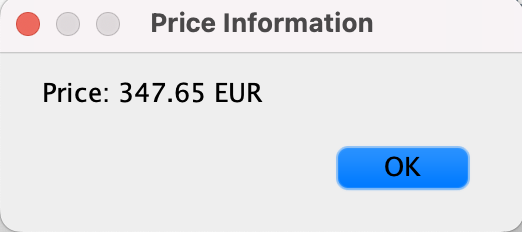
      JOptionPane.showMessageDialog(null, "Price: "+Double.toString(price) + " EUR ","Price Information", JOptionPane.PLAIN_MESSAGE);
   }
}
This is the window displayed by the program: